Insert a new expense line item
You can add new expense line items to individual sections, including:
- Salaries
- Benefits
- Supplies
- Other expenses
- Paid hours
The system adds the line by inserting the appropriate calculation method into the sheet. The following table lists the available calculation methods used by the corresponding section in the sheet:
| Calc method | Description | Sheet section |
|---|---|---|
| Add Detail - Input Monthly | Use this to insert a row to populate an individual month. |
Other Expenses |
| Add Detail - Input Total | Use this to insert a row to enter an annual amount, and then decide how to spread it. | Other Expenses |
| Add New Detail | Zero-based expense calculations. Inputs are done on the Detail sheet in the budget plan file. |
|
| Add New Hours | Use this new labor calc method to add a new hours account to the Expense sheet. | Paid Hours |
| Add New Input Monthly | Month-by-month input. Use this calc method only when adding a new account. |
|
| Add New Labor | Use this new labor calc method to add a new labor account to the Expense sheet. |
Salaries |
| Add New Variable | Calculates based on the relationship to key statistics. As there is no history when inserting as new, use the Amt Adjust (column P) to enter a value. If a projection value is desired, enter a value in Manager Input (Column J). |
|
| Fixed | Use this fixed methodology and select how you want to spread. |
|
| PctOfSalaries_FixedPct | Calculates a designated fixed percent from Budget Expense Adjustment Driver file, Budget Expense Assumptions, based on the relationship to salaries. Monthly spread will be based on the spread of salaries. |
Benefits |
| RatePerFTE_Fixed | Allows you to define the fixed dollar amount per FTE in Budget Expense Adjustment Driver file to apply globally to benefit accounts. |
Benefits |
- Go to the section to add the new line item.
-
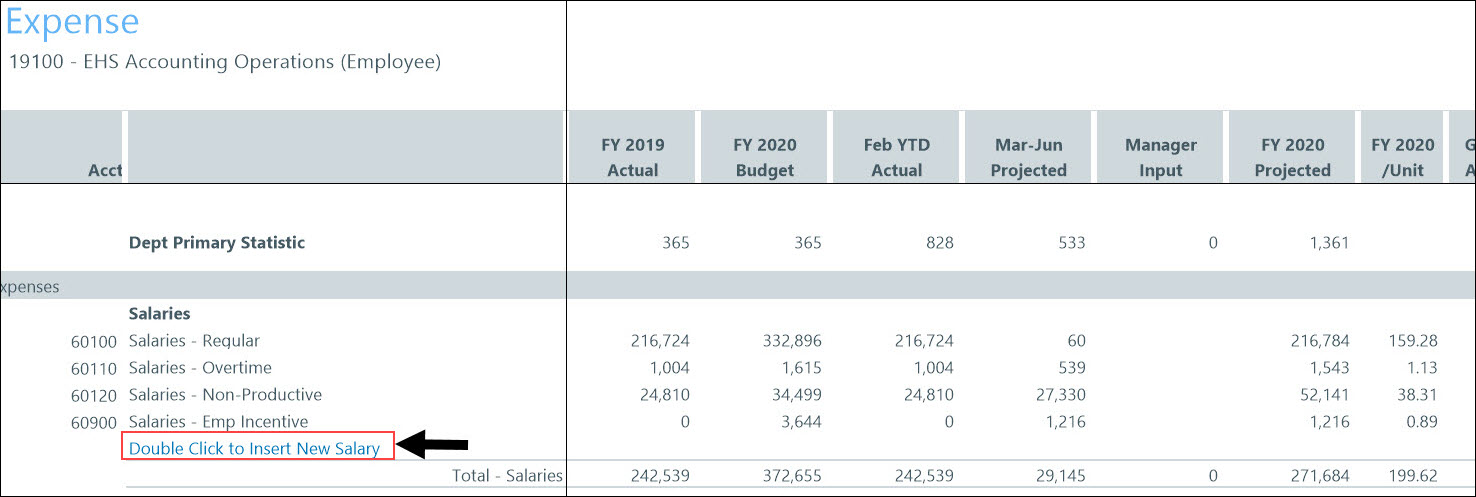
Double-click the Double Click to Insert... cell.
-
In the Insert Calc Method(s) in sheet Expense dialog, select the calculation method to insert, and click OK.
NOTE: If the line only uses or your organization is only licensed for one type of calc method, this dialog will not appear. The system will open the Calc Methods Variable dialog instead.
- In the Calc Methods Variable dialog, enter or select the account and department number, and click OK.
- Enter the appropriate values in the blue cells, as needed.
- After making your changes in the Main ribbon tab, click Save.
