After configuring the roll forward, use the Annual Rollforward Utility to select models and nodes to roll forward.
NOTE: Data is automatically saved as you move through the utility. To start over, refresh the utility by pressing the F5 key. Be aware that you will lose all of your previous selections when you refresh.
Select models
-
All models in the Model Selections page are selected by default. Clear the checkbox in the Include? column to exclude a model.
(Optional) Click the Filters icon (
 ) to filter the model list.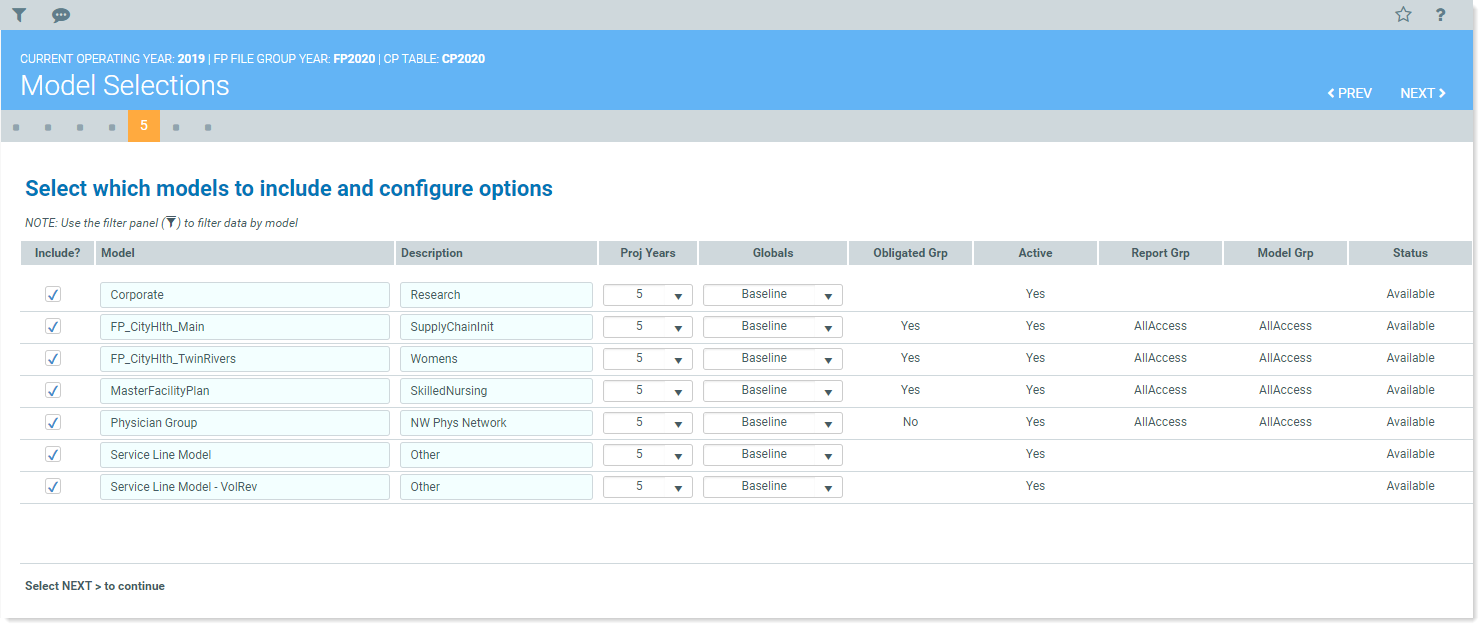
- (Optional) Make any of the following changes:
- Enter a new name in the Model.
- Enter a new Description.
Select the desired number of years in the Proj Years drop-down list.
Select a different driver to use for a model in the Globals drop-down list.
- Click NEXT.
Select nodes and configure options
Use the Node Selections page to select nodes to include in the roll forward, based on the models you selected on the previous page.
-
All models in the Node Selections page are selected by default. Clear the checkbox in the Include? column to exclude a node.
(Optional) Click the Filters icon (
) to filter the node list. 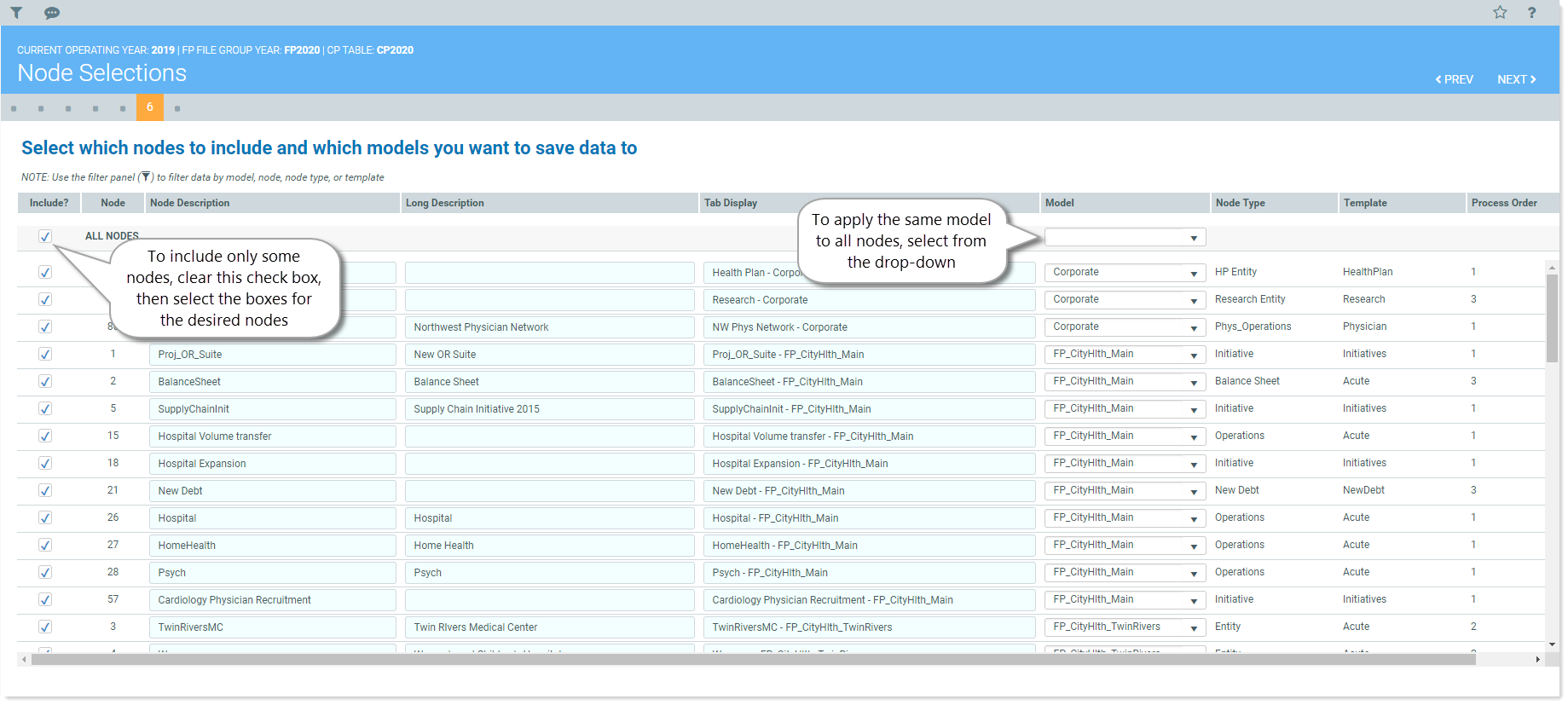
- (Optional) make any of the following changes:
Enter a new Node Description.
Enter a new Long Description.
Enter a new Tab Display to change the text displayed on the tab when the plan file is opened.
NOTE: This is the value that displays when a node is opened and can be modified.
Update the model for all nodes.
Select a Modelfrom the column header dropdown list. The selected model name is changed in the Model field for all nodes.
Update the model for individual nodes.
Select a Model from the dropdown list in a node's row.
-
Click NEXT to Finalize and submit.
