Manage previously transferred capital projects
Control whether previously transferred projects transfer again when you run the Transfer Capital Projects to Financial Planning utility. Projects transfer again by default. However, you can control which projects transfer by enabling or disabling transfers.
If you are already on the first page of the utility, skip to step 2.
-
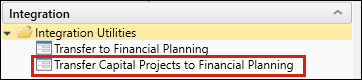
From the Fin Plan Admin task pane, go to Integration > Integration Utilities > Transfer Capital Projects to Financial Planning.
-
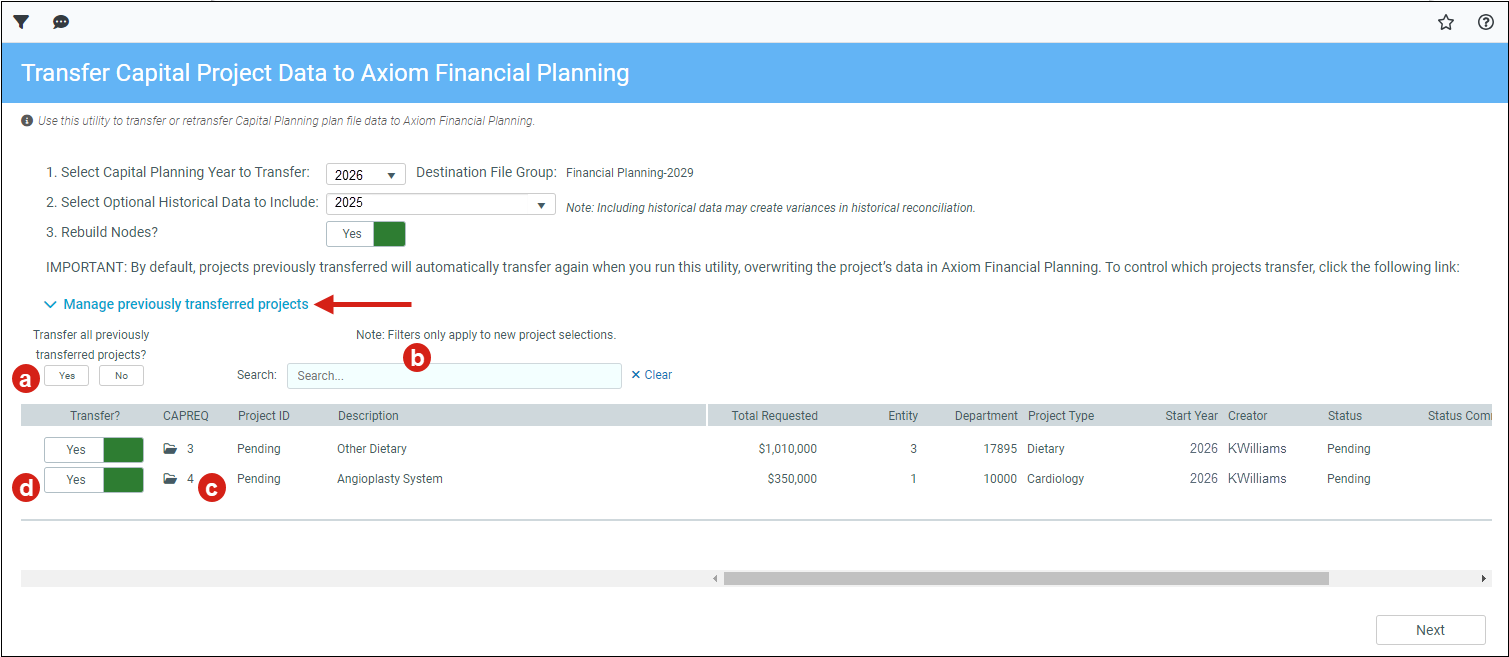
Click Manage previously transferred projects.
-
Do any of the following in the expanded section:
- To Transfer all previously transferred projects in the list, click Yes. To disable the transfer of all projects, click No.
- To search for a specific project, type project information in the Search box. For example, enter the CAPREQ number, the project ID, or description.
-
To view the plan file for a project, click the folder icon next to the CAPREQ number. The plan file opens in a separate tab. From the new tab, you can make any necessary changes to the project.
NOTE: To include the changes in the Transfer Capital Projects to Financial Planning utility, you must close it and open it again.
- To transfer individual projects, click the toggle to Yes in a project's row. Click the toggle to No to disable the transfer.
-
Click Next to Select capital projects for transfer.
NOTE: The projects you disable will not be listed in the select projects page.
