Collect and import data from other sources
Use the FP Data Collection template to gather data outside of Axiom Financial Planning. This template works as a standalone Excel workbook that you can use to import external data into the product and interface in the nodes for the three input periods.
NOTE: In some cases, you might want to collect historical data from other members of your organization. To help with this process, Strata can provide an Excel Data Collection workbook to share with VPs, directors, managers, and other stakeholders.
You can import data without granting other users access to Axiom Financial Planning. Instructions on setting up and using the Data Collection workbook are included on a sheet within the workbook.
-
In the Fin Plan Admin task pane, access theAdministration section, click Administrative Utilities, and then double-click FP Data Collection Template.
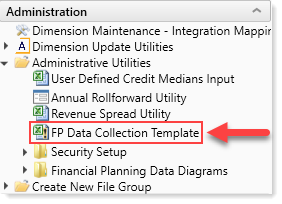
NOTE: You can export the utility by using Save As (Local File) and work on it outside the system.
-
In the Model Setuptab, complete the following information:
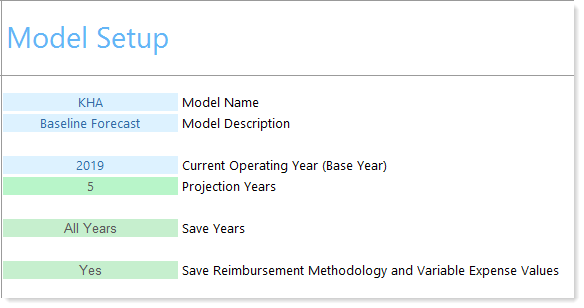
- Model Name
- Model Description.
- Current Operating Year (Base Year) —Year for current operating budget
- Projection Years— Number of projection years in model
-
All Years— Number of years to include in model
-
In the CODE Setuptab, set the following conditions to Hide or Show inputs and Yesor No to capitate payers.:

-
In the Save to Database dropdown, to save the changes from this template to the database, selectYes.
IMPORTANT: If you have already set up dimensions, press F9 to refresh the Code and Payor tabs. If you don't refresh the template before saving, you will overwrite the Code and Payor dimensions.
- In the Hide/Show column, do one of the following:
- To enable each input, selectSHOW.
- To disable the input, select HIDE.
- For Payor codes, in the Capitated column, do one of the following:
- If the payor is capitated, select Yes.
- If the payor is not capitated, select No.
-
-
Refresh the data to generate the Node tabs by doing one of the following:
NOTE: To add data to other Node tabs, unhide them.
-
In the Main ribbon tab, access the Workbook Options group and click Refresh Data.
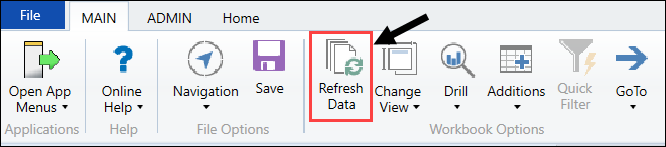
- Press F9.
-
-
Rename each worksheet to the node name to use in Financial Planning.
IMPORTANT: If you do not rename nodes, they will not be built in the system.
- Hide all unused Node number worksheets.
- For each node worksheet that you renamed, do the following:
- In the Node Typedropdown, select the node type.
- (Optional) Based on the node type, In the Visits\RVUs dropdown, select the measure for patient volumes (RVUs orVisits).
To hide or show inputs based on the node type selection, click Refresh View at the top of the Node tab page.
NOTE: This may take 20-30 seconds to process for each worksheet.
Enter node data in the applicable cells.
NOTE: Enter volumes and statistics in whole numbers. Enter all financial data in thousands (1,000).
- At the bottom of each worksheet, verify data tie out using the statements.
-
In the Consolidating Statement tabs, verify data tie out for the complete model for each year (Consol01, Consol02, Consol03).
-
Import the FP Data Collection Template into Axiom Financial Planning, and open it.
-
In the Main ribbon tab, click Save.
-
In the task pane, click Financial Planning Commands > Node Utilities, andthendouble-click Node Rebuild Utility.
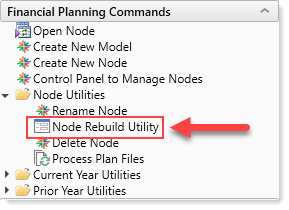
- In the Node Rebuild Utility, select the nodes and submit them for rebuild.
