Set year and period
Use this table to configure the following for your organization:
- Set the fiscal year and the first month of the fiscal year
- Define the number of work days in the current year, last year, and next year
-
Select the standard Full Time Equivalent (FTE) hours worked by employees in a year.
-
For Budget Planning, the 02 Budget Labor Configuration driver will use the default FTE scale created in the Year/Period Form but allow for modifications to the default at the Global and Budget Group level.
NOTE: The standard FTE hours you select in this worksheet displays as the default FTE Hours in the Budget Labor configuration
The FTE Hours you select are reflected on the following tabs in the plan file:
- Expense
- Jobcode
- Staffing
- Employee
- ProviderComp
- altEmployee
- HHLabor
-
In the Management Reporting Admin task pane, in the Data Maintenance section, double-click Update Year and Period Tables.
-
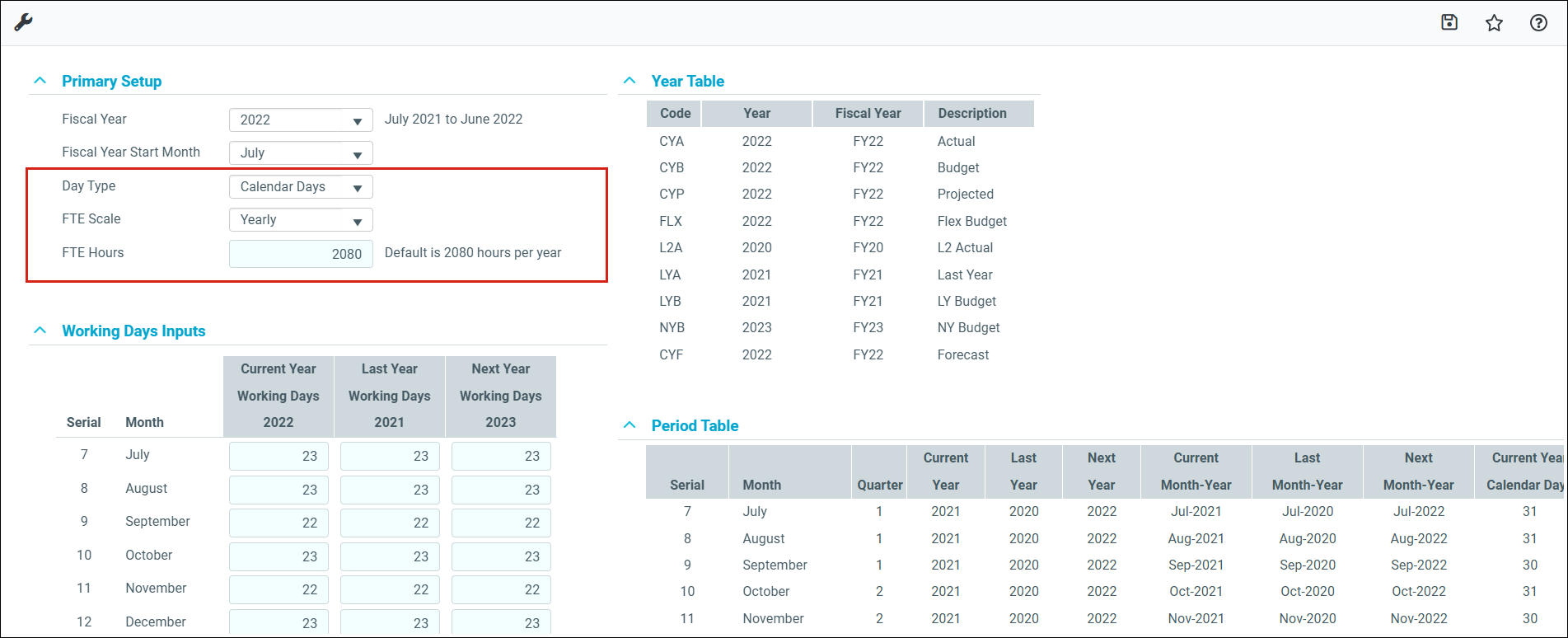
In the Primary Inputs section, complete the following options:
Option Description Fiscal Year Select the fiscal year. Fiscal Start Month Select the month in which the fiscal year starts. Day Type Select Calendar Days or Work Days. FTE Scale Select a Daily, Weekly, Monthly, or Yearly scale. FTE Hours Use one of the option to input the FTE value associated with the FTE Scale field selected above:
-
To use the standard of the number of days worked multiplied by a 40-hour work week divided by 7, type 2086.
-
To use the standard 40-hour work-week multiplied by 52 weeks, type 2080(default).
-
To use a custom FTE value, type it. To view multiple examples of how to use this field, see the section Examples of custom FTE scales below.
-
-
In the Working Days Inputs area, enter the number of working days for the current year, last year, and next year for each fiscal month.
TIP: To hide the year and/or period tables, click the corresponding check boxes under the Working Days Inputs section.
NOTE: When you select Work Days from the Day Type drop-down, Daily is the only available option from the FTE Hours drop-down.
- After making your changes, click Save.
Examples of custom FTE scales
You can configure the FTE Scale to suit the needs of your organization in a variety of ways, here are some examples:
Yearly
To calculate a full-time equivalent based on the yearly scale, complete the following:
-
In the Day Type drop-down, select Calendar Days.
-
In the FTE Scale drop-down, select Yearly.
-
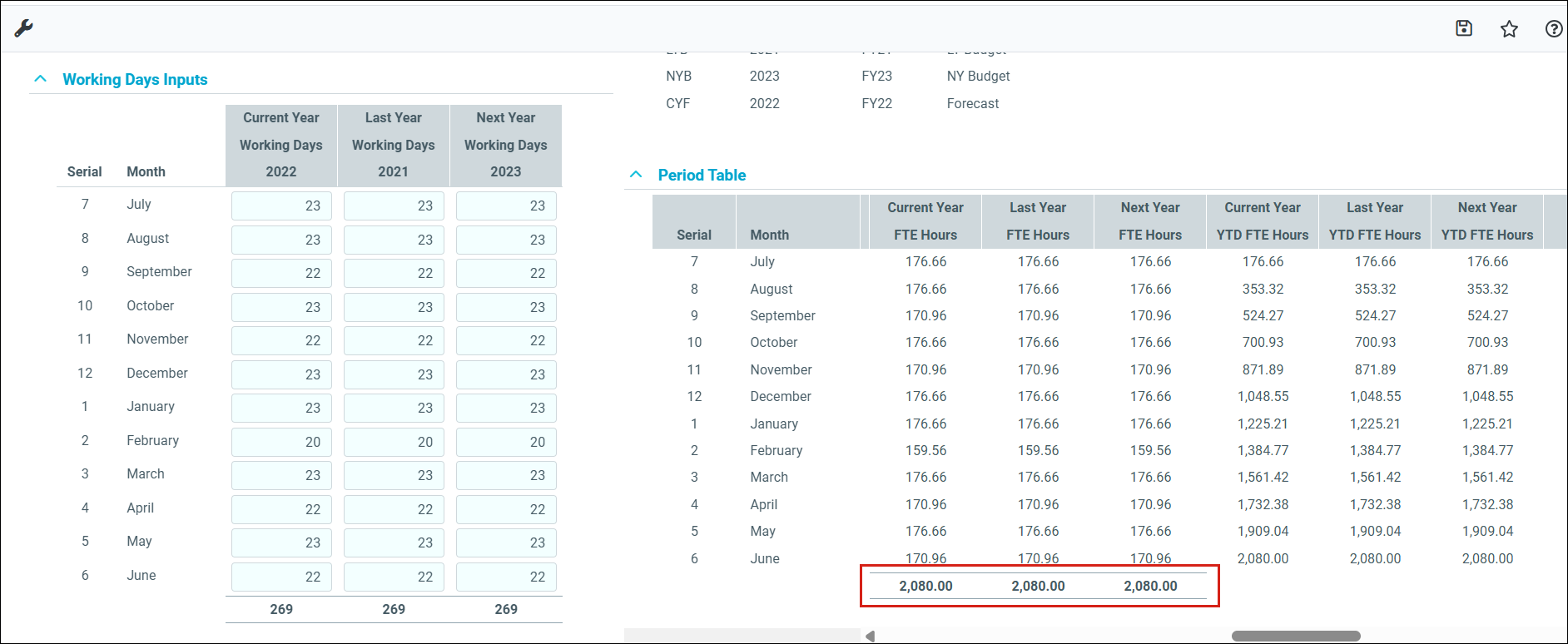
In the FTE Hours field, type 2085.714.
-
Click the Save icon in the top right of the toolbar.
NOTE: The default FTE hours is 2080.
The system displays the monthly hours worked based on your configuration in the Period Table section.
Daily
To configure a scale for 2080.5 instead of the standard 2086 (2085.71) scale, complete the following:
NOTE: Leap year hours are assigned to February.
-
In the Day Type drop-down, select Calendar Days.
-
In the FTE Scale drop-down, select Daily.
-
In the FTE Hours field, enter 5.700.
-
Click the Save icon in the top right of the toolbar.
NOTE: The FTE Hours default for this configuration is 5.7 hours per day.
Weekly
To configure an annual FTE of 2085.71 based on a weekly calculation of 40 hours per week, complete the following:
-
In the Day Type drop-down, select Calendar Days.
-
In the FTE Scale drop-down, select Weekly.
-
In the FTE Hours field, type 40.00.
-
Click the Save icon in the top right of the toolbar.
NOTE: The default for this configuration is 40 hours per week.
Monthly
To configure on a scale where employees work that same number of hours per month, in this example an annual FTE scale set to 2080 hours, where the monthly FTE hours are 173.3333, complete the following:
-
In the Day Type drop-down, select Calendar Days.
-
In the FTE Scale drop-down, select Monthly.
-
In the FTE Hours text box, type 173.3333.
-
Click the Save icon in the top right of the toolbar.
NOTE: The default for this configuration is 160 hours per month (for a 30 day month). Leap year hours display for February when applicable.
