Open a budget plan file
Your access rights to each budget plan file (read-only or read/write) within a file group are determined by a combination of your security settings and workflow or process settings, if applicable.
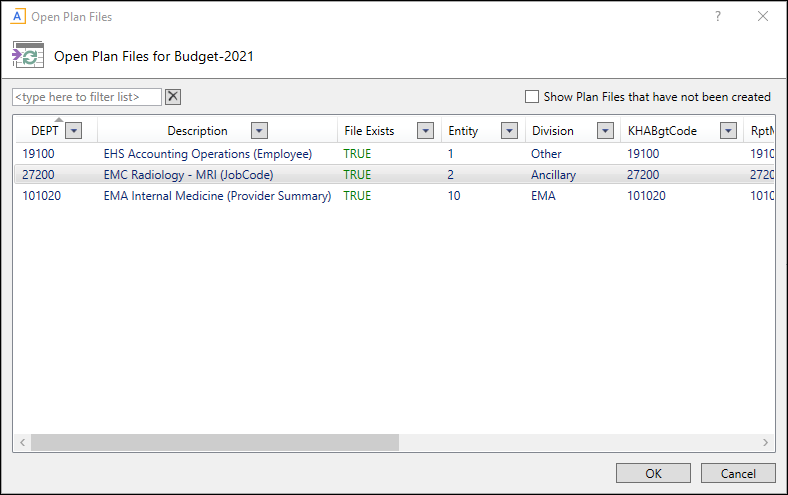
The Open Plan Files dialog lists all budget plan files available to you based on your role profile and security settings. Use the filter box at the top of the dialog to quickly find a plan file based on the plan code or description. You can also use sort and filter to narrow down the list. If you previously opened a budget plan file within this session, the system highlights that plan file by default when you open the dialog.
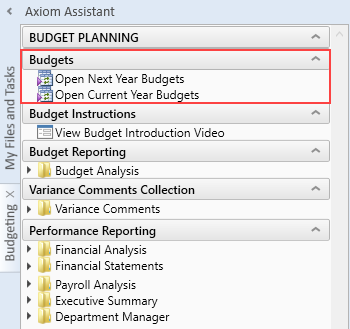
Depending on your Axiom role profile, you can open budgets from either the Budgeting or Bud Admin task panes.
-
Use one of these methods to access budgets:
- From the Main ribbon tab, click Open App Menus and select Budgeting.
- From the Admin ribbon tab, click Admin Task Panes and select Budget Admin
-
Double-click Open Next Year Budgets or Open Current Year Budgets.
- In the Open Plan Files dialog, select the budget plan file or files to open, and click OK.
- If you have read/write permissions to a file but you want to open it as read-only to prevent locking the file from other users, right-click your selection, and select Open Read Only.
The selected budget plan files open. If a file was opened read-only, then the text (R/O) displays in the file tab. You cannot save read-only budget plan files.
If the dialog is empty, you do not have access to any budget plan files in the file group or the budget plan files have not yet been created for the plan codes to which you have rights.
If another user has the budget plan file open with read/write permissions, the file is opened as read-only, regardless of your security permissions.
